Get a summary of this article with your favorite AI:

Get a summary of this article with your favorite AI:
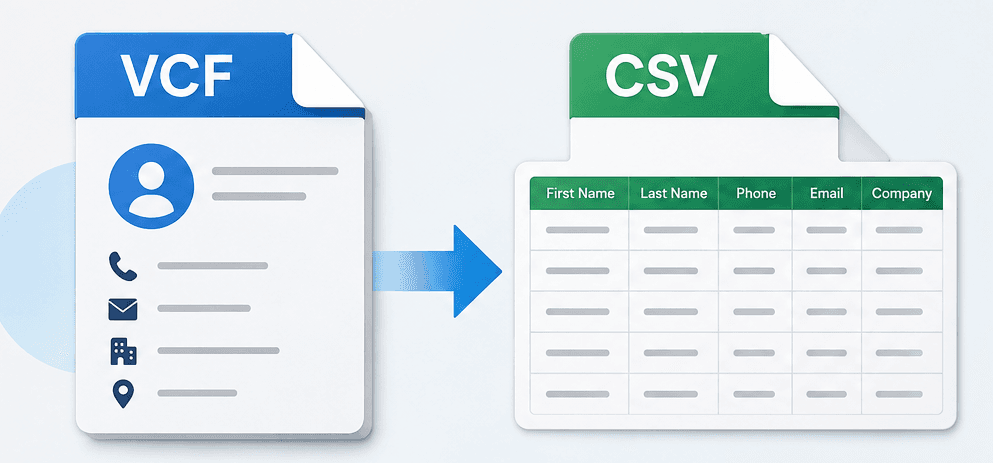
Importing contacts into a spreadsheet from a phone, email platform, address book, or other application might be hard when the source data is in VCF (vCard) format. vCard is for individual contact information, while CSV is more about rows, columns, filtering, editing and importing into a wide range of commercial applications.
A successful conversion is not just a matter of altering the file extension. You should have fields for your contacts’ names, phone numbers, email addresses, firms, process titles, websites and addresses, and these should be properly structured. Various applications can also use vCard fields differently; therefore, validating the source and destination files is an important part of the procedure.
To help you avoid errors and stay organised with your contact data, follow the VCF to CSV conversion checklist below before, during, and after the conversion.
CSV spreadsheets are useful if you want to access the contact information in spreadsheet apps, CRM applications, databases or any other application that supports tabular data. A spreadsheet also allows you to categorise contacts, find incomplete records, delete duplicates and check information before importing it elsewhere.
A typical conversion can include fields for first name, last name, phone, email, company, process title, address, city, state, zip code, country, website, remarks, etc.
☐ Find the relevant .vcf file on your computer or storage device.
☐ Make sure it has the contacts you truly want to export.
☐ If there is a newer export of contacts, don’t fall back to an old backup.
If the file originated from a phone, a contacts service in the cloud, Outlook or another address book, verify the date of the export before proceeding.
☐ Copy the original VCF file.
☐ Copy the backup to another folder.
☐ Do not change your only copy of the source contacts.
This gives a recovery option if a conversion creates incomplete records or unfamiliar formatting.
☐ Ensure that the file opens properly in a contacts application that supports the file type.
☐ Check that the contact names and phone numbers are correct.
☐ Look for entries that are blatantly corrupt or incomplete.
Whatever type of conversion you use, you could run into complications if the original file is destroyed or created wrongly.
☐ First Name, Last Name
☐ Phone numbers (mobile, home and work)
☐ Primary and secondary email address
☐ Process title & company
☐ Location and address
☐ Website 2
☐ Notes/Additional information
If you know the fields you need in advance, it makes it easy to review the final spreadsheet.
☐ Check for duplicate names.
☐ Repeated telephone numbers.
☐ Emails that you already have; decide if you want to retain duplicates or delete them.
If you are not sure that identical records are the same individual, don’t delete them automatically.
☐ Manual method for a limited number of contacts.
☐ Think of software that is written for large contact collections.
☐ Verify the selected method, its many contacts, and needed fields.
Some records can be processed manually, but large address books might make repetitive conversion and verification a tedious task.
☐ Is it possible to batch convert VCF contacts
☐ Do not copy your entire contacts list into a spreadsheet by hand.
☐ Make sure that the contact structure remains intact after conversion.
Bulk processing can save businesses, migration projects, or large address books a lot of time because it eliminates repetition.
☐ Select software that is compatible with your Windows environment and source files.
☐ Verify contact fields before conversion.
☐ Look for a tool that offers a simple process.
☐ Verify that the output can be stored to the destination of your choice.
When handling large contact files, it is generally much more efficient to use dedicated desktop software than to work through data manually regularly. With the right tool, your vCard contact details will be correctly mapped, safely exported and will be available to use in spreadsheets instantaneously, without any data loss.
Pro Tip: Not interested in the manual setup? You can use an expert tool like Softaken VCF to CSV Converter, a dedicated software to batch export thousands of vCard contacts into CSV in seconds.
☐ Launch the conversion utility that you selected.
☐ Navigate to the source VCF file.
☐ Ensure that you have the proper file loaded.
☐ If working with more than one file, check the selected source for each.
A brief verification of the input can prevent a successful conversion from providing the wrong output.
☐ Check that names are mapped correctly.
☐ Check the phone number fields.
☐ Check email columns.
☐ Examine company and process title information.
☐ Check Address fields.
☐ Watch out for custom or unusual fields.
Field mapping is particularly significant because contact applications do not always use the same labels for the same sort of information.
☐ Pick a destination folder that can easily be found.
☐ File name of descriptive CSV filename.
☐ Do not replace an existing contact spreadsheet unless that is what you want.
For example, recognising a file name like Business_Contacts_2026.csv is easier later than a generic file name.
☐ Convert vcf to Excel.
☐ Please wait while we process this.
☐ Do not interrupt the application while it is processing a large group of contacts.
The processing time will vary depending on the quantity and complexity of the records.
☐ Open the generated CSV data file in Excel, Google Sheets or any other spreadsheet software that supports CSV formats.
☐ Ensure each contact is on the row you anticipate.
☐ Check column headings.
☐ Review names, phone numbers and e-mail addresses.
☐ Empty values or values placed incorrectly
After every conversion, a quality check should be done; do not assume the output is perfect.
☐ Check international names and addresses.
☐ Look for accented characters.
☐ Check the spelling of names and places.
☐ Check that phone numbers were not changed accidentally.
☐ Check if columns are still split correctly.
At this point, if the contact info contains odd symbols or non-English characters, issues with encoding and formatting can start to show themselves.
☐ Drop unneeded columns if that makes sense.
☐ Make contact info consistent.
☐ Remove duplicates (checked).
☐ Validate mandatory fields required by the destination platform.
☐ Save a final copy before importing into another software.
If the CSV is intended for import into a CRM, email marketing platform, database or spreadsheet analysis, review the import requirements of the target software before making final amendments.
Some contact information need attention even after successful processing. Custom vCard fields can not map cleanly to normal spreadsheet columns. Multiple telephone and email addresses can also require thorough inspection, and changes in encoding can influence unusual characters.
If it looks like information is missing, check the original VCF to see if it was there before you assume the conversion stripped it out. This basic check might help you determine whether the problem was in the source contact or in the transformation of the data.
Before you walk out the door, make sure you can check every one of these boxes:
☐ Correct VCF file chosen
☐ Original contact file saved
☐ Examined contact records
☐ Fields identified as required
☐ Duplicates avoided
☐ Conversion technique chosen
☐ Considered bulk processing for large datasets
☐ Contact fields accurately mapped
☐ Actual output location
☐ CSV file created successfully
☐ Inspected Converted Contacts
☐ Special characters verified
☐ Phone and email fields validated
☐ Unnecessary data cleaned
☐ Final CSV backed up before import.
Converting vCard contacts to a CSV format is easier because it's a data preparation and verification procedure, not just a file format change. To avoid unnecessary contact-management difficulties, check the source, back up the original, examine field mapping, validate the generated spreadsheet, and clean the final data.
For a limited number of contacts, a manual workflow can be enough. But if you have a large VCF address book or need a repeatable desktop-based process, dedicated software can provide you with a more systematic approach to the conversion process. The purpose-built procedure can be effective for moving contact information to CSV when the goal is to avoid manually recreating each entry.
Prepare the contacts, convert them properly, check the spreadsheet and import or distribute the generated CSV only. This checklist helps to make that workflow more organised, reliable, and easy to repeat.
.jpeg&w=3840&q=75)